
Download Enterra Download Manager – Fast, Secure, and Integrated Download Tool for Windows
Overview
Enterra Download Manager is a lightweight plug‑in designed specifically for Microsoft Internet Explorer, filling the gap that the browser’s native downloader left wide open. While modern browsers have improved their download capabilities, many users still rely on Internet Explorer for legacy web applications, internal corporate portals, or legacy sites that only support ActiveX controls. In those scenarios, Enterra steps in as a dedicated download engine that captures every file request, displays detailed progress information, and offers advanced features such as password‑protected server support and proxy configuration.
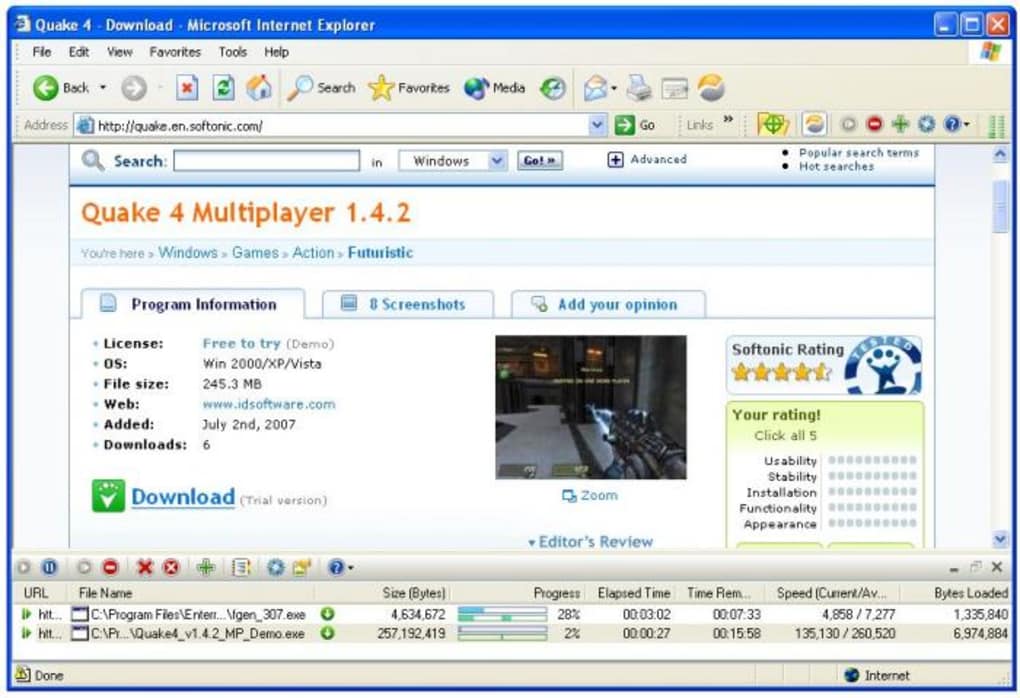
The plug‑in opens a bottom pane within the browser window that lists each active download, its size, speed, estimated time remaining, and a clickable link to the file’s location on the hard drive. Although the pane can occupy a noticeable amount of screen real estate, users can hide it with a single click, keeping the browsing experience uncluttered. Enterra also integrates with Windows’ notification area, allowing you to monitor download status without keeping the pane visible.
Security‑focused users will appreciate that the manager respects Windows security prompts and can work with HTTPS‑secured links, ensuring that files are transferred safely. While the tool lacks a built‑in bandwidth throttling option—a notable omission for users on limited connections—it compensates with a clean UI, reliable resume support, and straightforward configuration. Overall, Enterra Download Manager brings a missing piece of functionality back to Internet Explorer, making large or protected file transfers smoother, faster, and more transparent.
Key Features and Installation Guide
Feature List
- Integrated bottom‑window download manager for Internet Explorer.
- Real‑time display of file size, download speed, and ETA.
- Support for password‑protected HTTP/HTTPS servers.
- Proxy server configuration for corporate environments.
- Resume capability for interrupted downloads.
- Hideable UI pane to keep the browser window tidy.
- Automatic detection of duplicate files and conflict resolution.
- System‑tray notifications for completed or failed downloads.
- Compatibility with IE 8, 9, 10, and 11 on Windows 7, 8, and 10.
- Secure handling of SSL certificates during download.
Installation & Usage Instructions
Installing Enterra Download Manager is a straightforward process that takes only a few minutes. Follow these steps to get the plug‑in up and running:
- Download the installer: Visit the official Enterra website and click the “Download for Windows” button. The file is a small
.exepackage (approximately 2 MB) that is digitally signed for security. - Run the installer: Double‑click the downloaded file. Windows User Account Control (UAC) will ask for permission; click “Yes” to allow the installation.
- Accept the license agreement: Read the End‑User License Agreement (EULA) and click “I Agree” to continue.
- Select installation folder: The default folder (C:\Program Files\Enterra) works for most users. You may change it if you have a custom program directory.
- Choose components: Ensure that the “Internet Explorer Integration” checkbox is selected. You can also enable the optional system‑tray notifier.
- Complete the setup: Click “Install.” The installer will copy files, register the ActiveX control with IE, and create a shortcut in the Start Menu.
- Restart Internet Explorer: After installation, close all IE windows and relaunch the browser. You will notice a new toolbar button labeled “Enterra” at the bottom of the window.
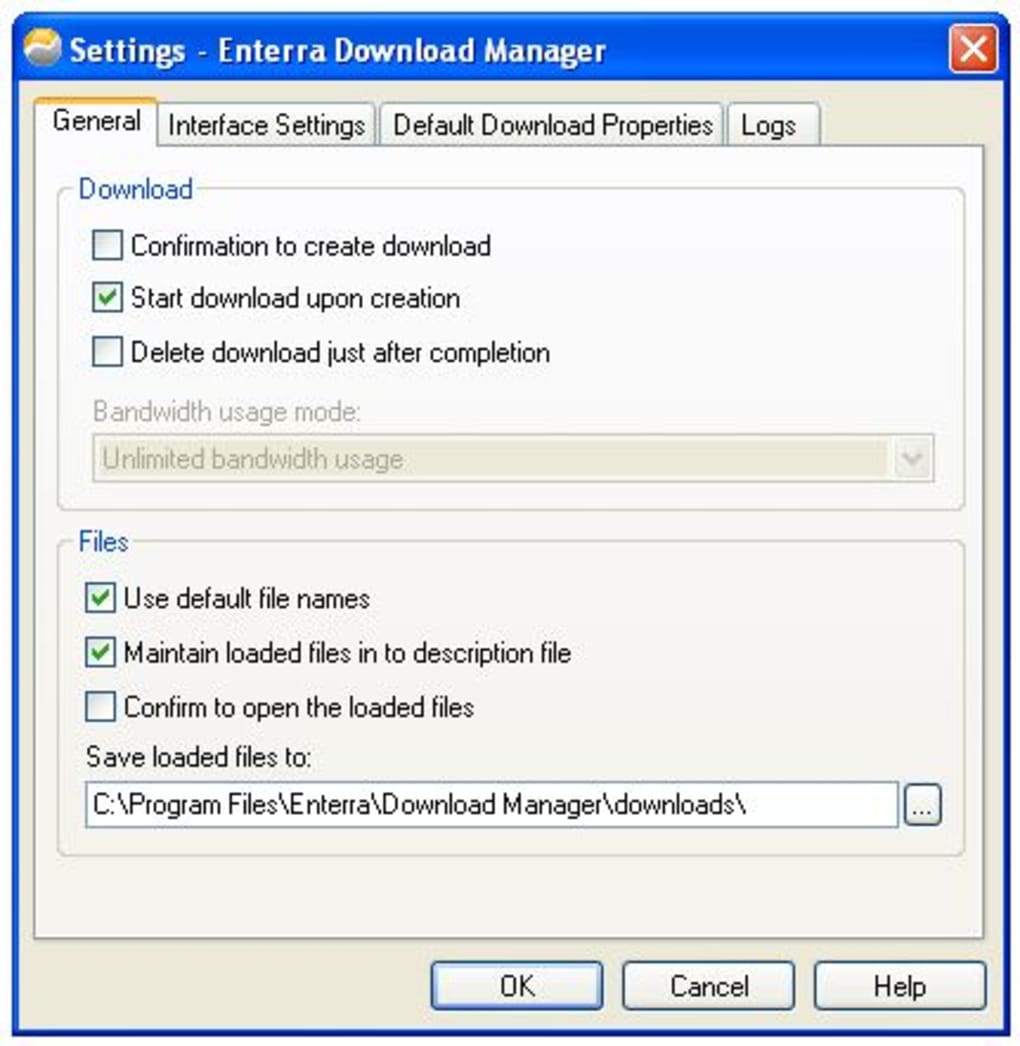
- Configure settings: Click the Enterra icon, then select “Options.” Here you can set the default download folder, configure proxy credentials, and enable password prompts for protected servers.
- Start downloading: When you click a download link in IE, the Enterra pane will appear automatically, listing the file and its progress. Use the “Pause,” “Resume,” or “Cancel” buttons as needed.
The entire process requires no technical expertise, and the plug‑in integrates seamlessly with existing IE sessions. Updates are delivered via an auto‑update service that checks for newer versions each time IE starts, ensuring you always have the latest security patches and feature improvements.
Compatibility, Pros & Cons
Operating System Support
Enterra Download Manager is built for the Windows platform and officially supports Windows 7, Windows 8, Windows 8.1, and Windows 10 (both 32‑bit and 64‑bit editions). The plug‑in relies on the Internet Explorer rendering engine, so it works with IE versions 8 through 11. While Microsoft has phased out IE in favor of Edge, many enterprise environments still maintain legacy systems that depend on IE, making Enterra a valuable addition for those scenarios. The application does not run on macOS, Linux, Android, or iOS, as it is tightly coupled with the Windows COM architecture used by Internet Explorer.
Pros
- Seamless integration with Internet Explorer eliminates the need for external download managers.
- Real‑time progress details and hideable UI keep the browsing experience clean.
- Robust support for password‑protected and proxy‑authenticated downloads, ideal for corporate networks.
- Automatic resume capability reduces wasted bandwidth when connections drop.
- Lightweight footprint (under 5 MB) ensures fast installation and minimal system impact.
- Secure handling of SSL/TLS connections, preserving data integrity.
Cons
- No built‑in bandwidth throttling; users on limited connections cannot limit download speed.
- Only compatible with Internet Explorer, limiting usefulness for users who have migrated to modern browsers.
- Missing advanced queue management features found in full‑featured download managers (e.g., batch scheduling).
- Occasional UI glitch where the bottom pane does not hide automatically after a download completes; requires manual dismissal.
- Support is primarily via email and forum; no live chat or phone support.
Frequently Asked Questions
Is Enterra Download Manager free to use?
Yes, Enterra Download Manager is offered as a completely free tool for personal and commercial use. There are no hidden fees or subscription charges.
Can I limit the download speed in Enterra?
Unfortunately, the current version does not include a bandwidth throttling option. Users who need to limit speed must rely on external network‑level tools or Windows QoS settings.
Does Enterra support HTTPS and SSL certificates?
Yes, the manager fully supports HTTPS links and validates SSL certificates, ensuring that encrypted downloads are transferred securely.
How do I configure a proxy server for downloads?
Open the Enterra pane, click the gear icon to access “Options,” then navigate to the “Proxy” tab. Enter your proxy address, port, and authentication credentials, then save the settings. All subsequent downloads will route through the specified proxy.
Can Enterra resume interrupted downloads?
Yes, the manager uses the HTTP “Range” header to resume partially downloaded files. If a connection drops, simply click “Resume” and the download will continue from where it left off.
Conclusion & Call to Action
For organizations and power users still dependent on Internet Explorer, Enterra Download Manager provides a simple, secure, and efficient way to handle large or protected file transfers. While it lacks some advanced features such as bandwidth throttling, its tight integration, real‑time UI, and support for proxy and password‑protected servers make it a valuable addition to any legacy workflow. Downloading and installing Enterra takes only a few clicks, and the auto‑update mechanism ensures you stay protected against emerging security threats. If you need a dependable download solution that works inside IE without the overhead of a separate application, Enterra is the right choice.
Ready to boost your Internet Explorer downloading experience? Click the button below to download Enterra Download Manager now – it’s free, secure, and ready to install in seconds.







